CrewHub puts your trips on a Google calendar. You confirm they arrived. CrewWX gets read-only access to that calendar.
You’ll need: a phone or tablet with CrewHub (iPhone, iPad, or Android) · a Google account · a browser signed into Google Calendar.
Don’t have a CrewWX account yet? Sign up and verify your SWA email first, then come back here.
1 — In Google Calendar (browser): choose or create a calendar for your trips
A Google account can hold several separate calendars. Think of them like folders. We recommend one just for CrewHub trips, called something like SWA Trips. CrewWX only ever sees the calendar you connect, so keeping trips separate from your personal events means the link can only ever show your work schedule. It matters for your brief too: each one lists the other items on the connected calendar for the next three days (you can turn that list off in your settings).
Already have a Google calendar just for your CrewHub trips? Skip ahead to Step 2.
Starting fresh? Create one now:
It opened the Calendar app instead? Press and hold the link until a menu pops up, then choose Open in Browser. Or open your browser yourself and go to calendar.google.com. On a phone, if you land on a plain page with only Day and Month buttons, scroll to the very bottom and tap Desktop (in “View: Mobile | Desktop”).

New calendars can only be created from a browser, not the Google Calendar app on your phone. That’s Google’s requirement, not ours.
Tapped the link above and it opened the Calendar app instead?
That happens on a phone with the Google Calendar app installed: tapping the link hands
it to the app instead of a browser tab, and new calendars can only be created from a browser
(see the note above). Instead, copy the address rather than tapping it:
https://calendar.google.com. Then open your browser and
paste it into the address bar directly. If that leads to a Google
sign-in page first: sign in, then open a new tab and paste the address
again. It doesn’t always carry you through to Google Calendar
after you sign in.
2 — On your phone or tablet: make sure CrewHub can see this calendar
CrewHub doesn’t connect directly to your Google account. It syncs to calendars your phone or tablet already has access to.
iPhone / iPad
Not listed? Tap Add Account at the bottom of that list, choose Google, and sign in. Being signed in to the Google Calendar app doesn’t add it here, because this is the phone’s own list.


This is what lets CrewHub see your Google calendars.
Android
Your Google account’s calendars are normally already available to apps on Android, so there’s usually nothing to turn on here. Just allow CrewHub calendar access if it asks.
The calendar “SWA Trips” not showing in CrewHub’s list? Three things to check: your device’s Google account has calendar sync turned on; Google Calendar is allowed to share its data with other apps; and in the Google Calendar app, the SWA Trips calendar itself has Sync enabled (menu → Settings → SWA Trips). Google’s Android calendar-sync guide walks through all three.
3 — In CrewHub: sync trips to that calendar
Do this before you share anything. The link you copy later is a live feed of whatever is already in the calendar, so your trips have to be in there first.
CrewHub calls this Sync Trips to iCal, but it works with Google calendars too, not only iCloud.
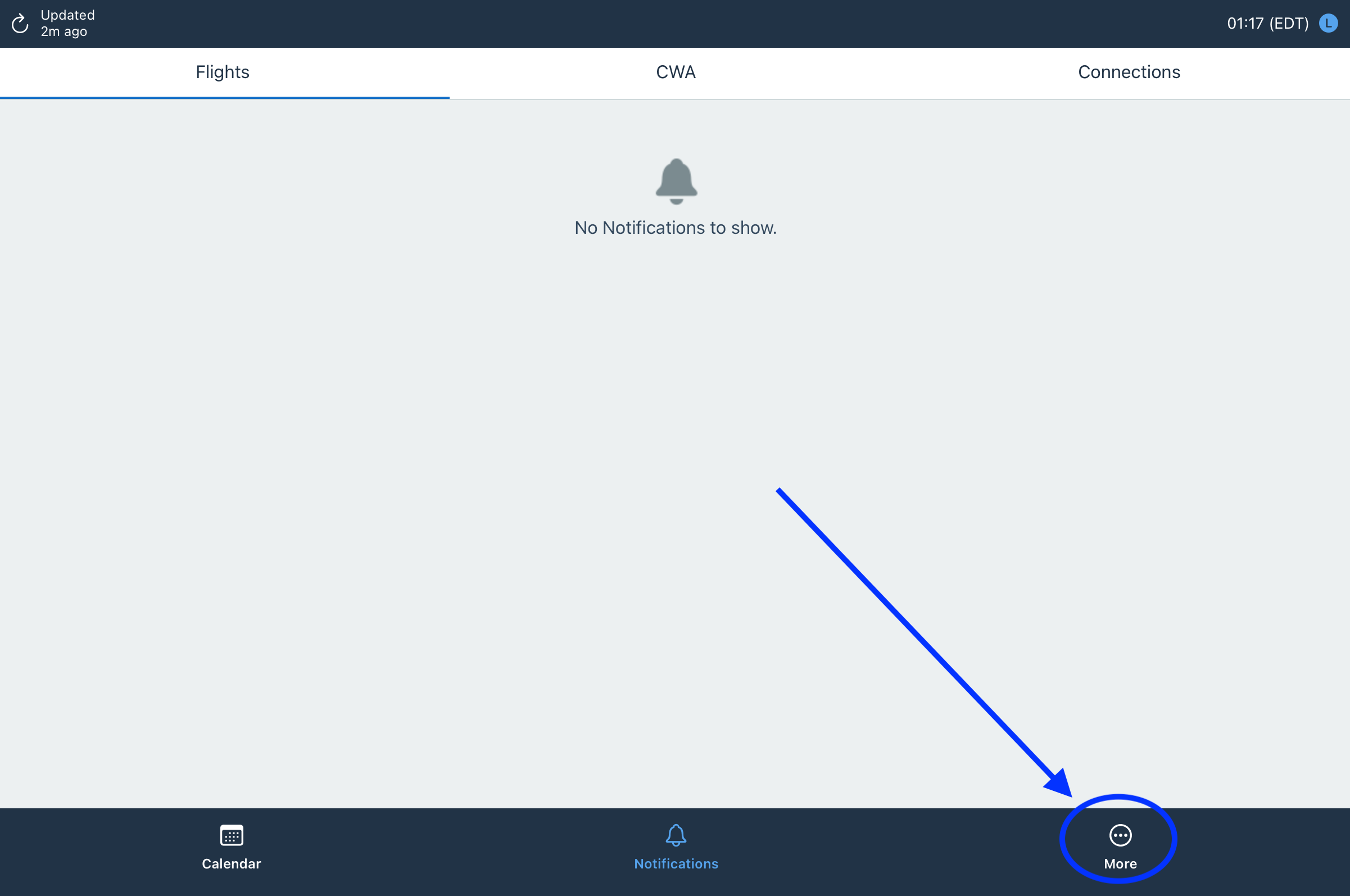
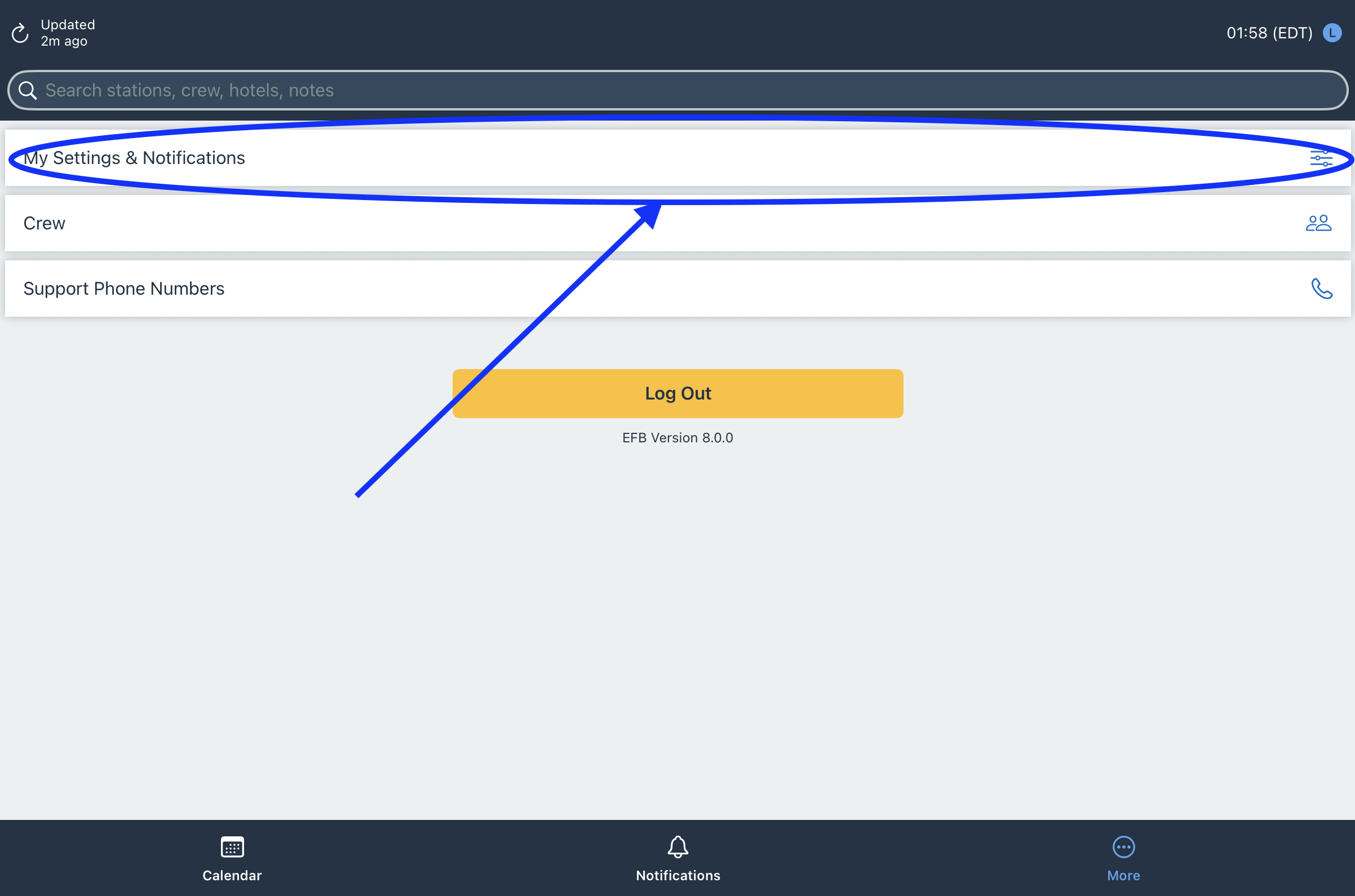
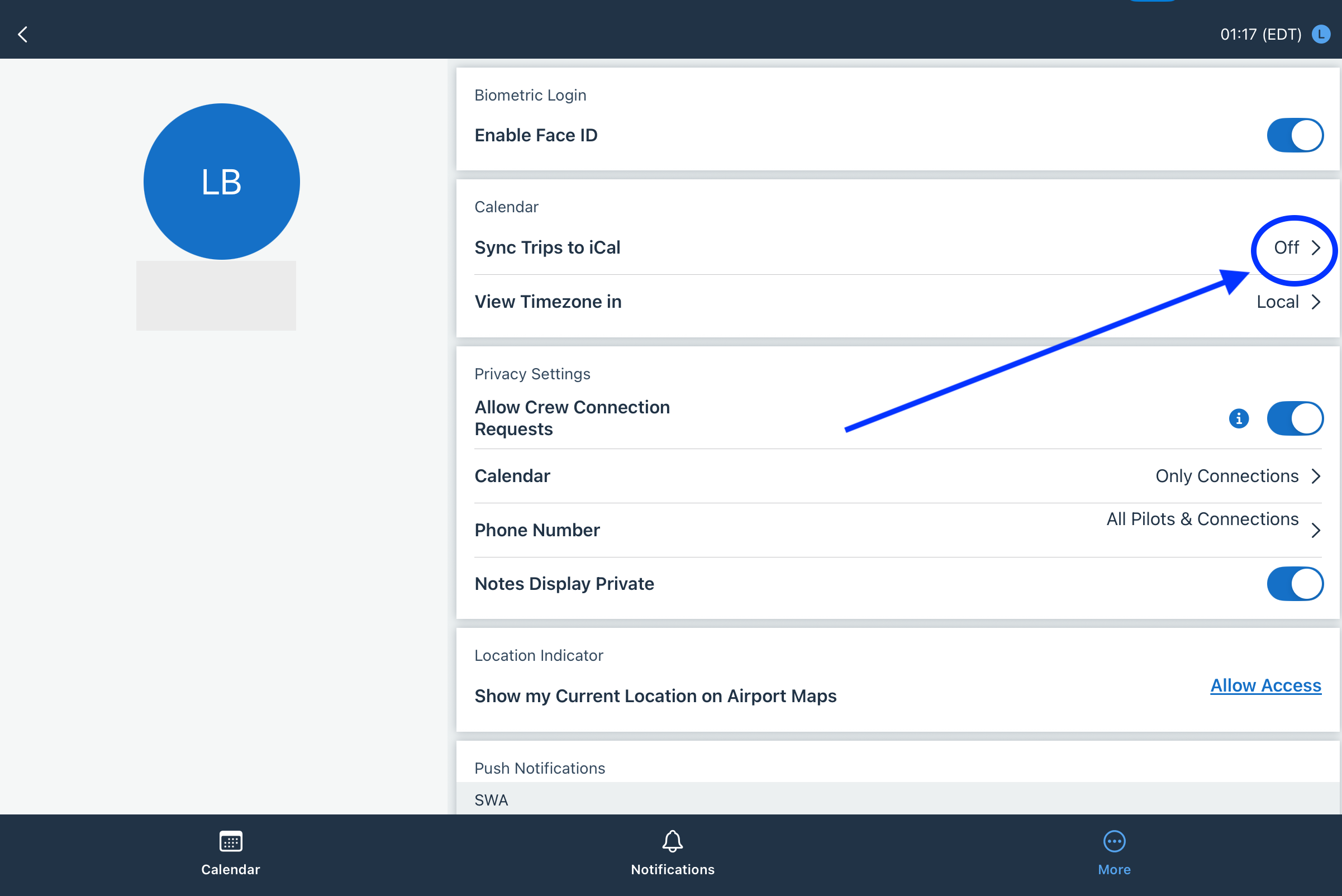
CrewHub lists every calendar connected to your device here: iCloud, Google, and any others you’ve signed in to. Your Google calendar will show up in this list alongside the rest.
Don’t see the calendar “SWA Trips” listed? That’s the Step 2 prerequisite above. Go back and confirm your Google account is signed in on this device with Calendars turned on.


4 — Stop here and check
Checkpoint 1: CrewHub → Google Calendar
Open Google Calendar. Do you see one of your CrewHub trips on the calendar “SWA Trips” (or whatever you named it)?
Tap the trip and look at which calendar its details name. It should be the one you picked, SWA Trips if you used that name.
5 — In Google Calendar (browser): get the private link CrewWX needs
This is the link that lets CrewWX read your trips. Google calls it the Secret address in iCal format.
It opened the Calendar app instead? The app can’t reach these settings. Press and hold the link until a menu pops up, then choose Open in Browser. Or open your browser yourself and go to calendar.google.com.
Tapped the link above and it opened the Calendar app instead?
That happens on a phone with the Google Calendar app installed: tapping the link hands
it to the app, which can’t reach these settings. Instead, copy the address
rather than tapping it: https://calendar.google.com/calendar/r/settings.
Then open your browser and paste it into the address bar directly.
If that leads to a Google sign-in page first: sign in, then open a new
tab and paste the address again. It doesn’t always carry you
through to the settings after you sign in.
On a phone, in your browser: if you land on a plain page with only Day and Month buttons and no settings, scroll to the very bottom and tap Desktop (in “View: Mobile | Desktop”). A banner may offer to open the Google Calendar app: ignore it and don’t tap OPEN, because the app has no Secret address. If you land on the calendar instead of Settings, tap the gear icon at the top, then Settings.


Tapped your trips calendar and nothing opened? On a phone it can take two taps before its list (Calendar settings, Integrate calendar, and the rest) appears. Tap it again.

On a phone you can tap Integrate calendar in the list under SWA Trips to jump straight there. The page is wider than the screen, so part of it sits off to the right: slide the page sideways to see it.
Google puts a “do not share” warning beside the next address. CrewWX only reads the calendar and can never change it, and the Reset button next to the address shuts the link off at once.
On a phone, tap the copy icon at the right end of that box (two overlapping squares). The eye icon beside it only shows the address; it doesn’t copy it.

Grab the Secret address, not the Public address. They sit right next to each other and look almost identical. The Public address follows your calendar’s general sharing permissions, so it usually comes through as featureless “Busy” blocks with no trip details, and no setting you change afterwards will fix that. The Secret address is tied to your account and always carries the real event data.

Google shows a warning next to the Secret address telling you not to give it to other people, and Google is right. Treat the link like a password: anyone holding it can read that calendar. That’s why we suggest a separate SWA Trips calendar. CrewWX only reads it and can never add, change, or delete anything.
The URL ends in .ics. That’s what you’ll paste into CrewWX in Step 6.
Why is this safe?
CrewWX uses this link to read the calendar you connect and identify your CrewHub trips: read-only, never shared, deleted the moment you delete your account.
You can stop CrewWX yourself at any time, without emailing anyone. The Unsubscribe link at the bottom of any brief lets you pause your emails or delete your account and its data, instantly. As a backup, or if the link ever ends up somewhere it shouldn’t, click Reset next to the Secret address in Google Calendar and the old link stops working immediately. To keep briefs coming after a reset, paste the new link at crewwx.com/update.
6 — In CrewWX: connect it
Copy the address from Step 5, then:
Checkpoint 2: Google Calendar → CrewWX
Go back to the CrewWX Finish Setup page and paste the address there. It checks your calendar automatically before saving, and flags anything that looks wrong. Closed that page? Reopen it with Continue Setup on your confirmation page, or the link in your setup email.
Not signed up yet, or just want to double-check the link first? The calendar test tool on the main Support page only tests the link. It doesn’t save anything, so you still need to paste the address into Finish Setup.
If something’s not right
- My Google calendar isn’t in CrewHub’s list. The account isn’t on your device yet, or Calendars is switched off for it. See Step 2 above.
- The test tool says it can’t find anything from CrewHub. The link is reaching a real calendar, but not the one CrewHub is writing to. Usually Sync Trips to iCal is still pointed somewhere else. Go back to Step 3 and confirm the calendar “SWA Trips” is the one selected, then re-copy the address from Step 5.
- The test tool says CrewHub is syncing, but there are no upcoming trips. Different thing, and nothing is wrong. It found CrewHub’s entries and you just have nothing scheduled yet. Finish setup; your first brief arrives a few days before your next trip.
- My trips show up as “Busy” with no details. You copied the Public address instead of the Secret one. Go back to Step 5 and copy the Secret address in iCal format, then submit it at crewwx.com/update.
- There is no Secret address, no matter how far I scroll. Work and school Google accounts can have it switched off by the administrator, and then it simply isn’t there. Retrying won’t change that. See the note under Step 5: iCloud or a personal Gmail account will both work.
Sync your Google Calendar with other apps (Google Support). Step-by-step from Google if you need more detail.
Questions about something else? Visit the main Support page →
CrewWX™ is an independent service and is not affiliated with, endorsed by, or sponsored by Southwest Airlines Co. Southwest Airlines® is a registered trademark of Southwest Airlines Co. All rights reserved. CrewWX is not a Southwest Airlines product or service. Use of this tool is at your own discretion and subject to your employer’s applicable policies regarding personal device use and third-party applications.